
If Verity isn’t talking, isn’t spawning, or just sits there saying “…”, the cause is almost always one setting: Beta APIs aren’t enabled on the world you’re playing in. This isn’t unique to Verity; any Bedrock add-on that runs scripting behind the scenes needs this toggle on, but it’s easy to miss because it’s buried under Experimental Toggles, not in the main settings menu.
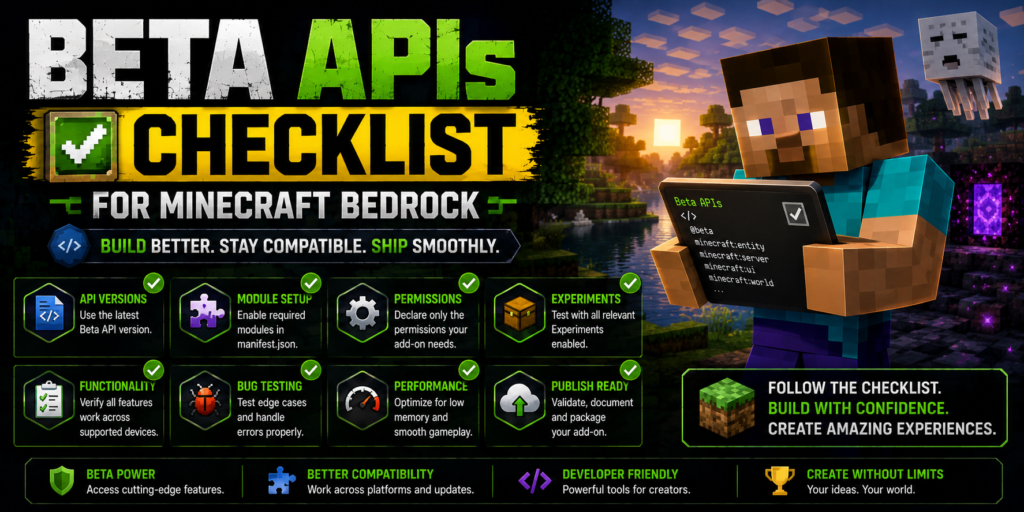
This page covers both Verity BE (Official) and Verity — Bedrock Edition, since both Bedrock builds depend on the same setting.
What Beta APIs Actually Do
Beta APIs unlock Minecraft Bedrock’s scripting engine for a world. Add-ons like Verity that generate dialogue, react to chat, or run any kind of live logic beyond static behavior files need this engine turned on to function at all. Without it, the add-on’s resource and behavior packs still load visually; you might see Verity’s character model, but nothing behind it actually runs, which is exactly why the symptom looks like “the mod is installed but broken” instead of “the mod didn’t install.”
The Checklist
Go through these in order. Most non-responding installs are fixed by the first two.
1. Beta APIs enabled on this specific world. Open the world → Settings → Experiments → toggle Beta APIs on. This has to be done per world – enabling it once doesn’t carry over to new worlds you create later, and it can’t be turned on retroactively for a world that’s already been created without it. If you started the world before enabling this, you’ll need a new world.
2. Cheats enabled: Verity’s dialogue and command system runs through Minecraft’s command framework, which requires cheats to be on for that world. Check this in the same Settings menu, just above or below the Experiments section depending on your version.
3. Correct Minecraft Bedrock version: Verity BE (Official) and Verity – Bedrock Edition both currently target Minecraft Bedrock 1.26.30. If you’re on a newer or older version, the add-on may load without errors but never actually connect. Check your version under Settings → General, and update or roll back to match what the mod’s current CurseForge listing specifies — this changes as the mods update, so check the listing itself rather than trusting an older guide.
4. Connect command run: Both Bedrock builds require a specific command run in chat after loading in, which links your world to the developer’s backend. The exact command differs by build and changes periodically, so pull the current one from the mod’s own CurseForge page or Discord rather than an old screenshot — an outdated command is a common, easy-to-miss failure point.
5. You’re on the current file version. Both Verity Bedrock builds update frequently — Verity BE (Official) has shipped a new file nearly every few days in recent months. If you downloaded your copy more than a couple of weeks ago, redownload the current file before troubleshooting further. An outdated build is one of the two most common causes the developers themselves point to when a dialogue box won’t appear.
6. Backend status: If the above are all correct and Verity still only responds with “…”, the mod’s own support documentation lists this as a known symptom of the developer’s backend being temporarily down or overloaded, not a problem with your install. Check the relevant Discord for status updates before reinstalling anything.
If You’re Still Stuck
Work through the list in order rather than jumping to a reinstall; most reports of a “broken” install come down to one of the first three items, not a corrupted file. If you’ve confirmed all six and it’s still not working, it’s most likely step 6: a backend issue outside your control, and reinstalling won’t fix it.