
How to Install Minecraft Mods on Android and iOS (2026 Guide)
Here is the short version: phones and tablets run Minecraft Bedrock Edition, so you install add-ons, not Java mods. On Android, download a .mcaddon or .mcpack file, open your Files app, tap the file, and choose Minecraft; the game imports it and shows a success message. On iPhone or iPad, download the file in Safari, open the Files app, tap Share on the file, and choose to open it in Minecraft. After the import finishes, open your world settings, go to Behavior Packs and Resource Packs, and tap Activate on each pack.
Java mods never run on phones
Every week someone downloads a Forge mod onto their phone and wonders why Minecraft will not touch it. Here is why: your phone runs Minecraft Bedrock Edition, and a computer runs Minecraft Java Edition. They are two separate games written in different languages, and a mod built for one cannot run on the other.
Java mods need a mod loader, Forge, Fabric, or NeoForge, and those loaders are PC-only. If you play on a computer as well, we have a full guide to installing mods on Java Edition, and a comparison of Forge vs Fabric vs NeoForge so you pick the right one there. On your phone, forget the word “mod” and think “add-on” instead. Everything below is about add-ons, and add-ons work on Android and iOS right now.
One more outdated idea to drop: old Android launcher apps like BlockLauncher were the way to mod phones years ago. They no longer work on modern game versions. Add-ons replaced them.
What an add-on is
An add-on is Mojang’s official way to change the game: new mobs, blocks, items, weapons, or textures. An add-on comes in two halves. The behavior pack changes what things do, and the resource pack changes what things look like. Many add-ons ship both halves, and you need to turn on both or the add-on breaks or does nothing.
Add-ons arrive as files your phone already knows how to hand to Minecraft:
| File type | What it holds | How you install it |
|---|---|---|
| .mcaddon | The whole add-on: behavior pack and resource pack together | Tap it; Minecraft imports both halves |
| .mcpack | One half: either a behavior pack or a resource pack | Tap it; Minecraft imports that half |
| .mcworld | A full world with packs already set up | Tap it; the world appears in your world list |
If you get the choice, download the .mcaddon. One file, one tap, both halves imported.
Before you install anything
- Check your game version. Open Minecraft, tap Settings, and look at the bottom-left corner of the main menu. Mojang switched Bedrock to year-based numbering in 2026, so current versions read 26.x (see Minespecs’ version rundown). The add-on page should list which game versions it supports; an add-on built for 1.20 can fail on 26.x.
- Install Minecraft from the Play Store or the App Store. Copies from anywhere else are the main way people lose accounts, and unofficial copies can fail to import packs.
- Back up your worlds before you start changing them. Copying a world or exporting it takes a minute; rebuilding a survival world takes weeks.
How to install Minecraft mods on Android
- Download the add-on file in your browser. It lands in your Downloads folder.
- Open the Files app (or whatever your phone calls its file manager) and go to Downloads.
- Tap the .mcaddon or .mcpack file. Android asks which app should open it; pick Minecraft.
- Minecraft opens and starts importing. Wait for the import-success message before you touch anything.
- If tapping the file does nothing, long-press it, choose Open with, and pick Minecraft. If it still will not open, go to Settings > Apps > Minecraft > Open by default and confirm Minecraft is the default app for these file types (the fix is documented in GeekChamp’s Bedrock guide).
Sometimes an add-on downloads as a .zip. Open the zip and look inside before you do anything. If you see a .mcaddon or .mcpack inside, pull it out and tap that. If the creator says to rename the .zip to .mcaddon, do it only when their instructions say so explicitly; guessing the rename is how broken imports happen.
Skip the old advice about copying folders into Android/data by hand. Scoped storage on modern Android blocks that path on most phones, which is why tap-to-import is the reliable method now.
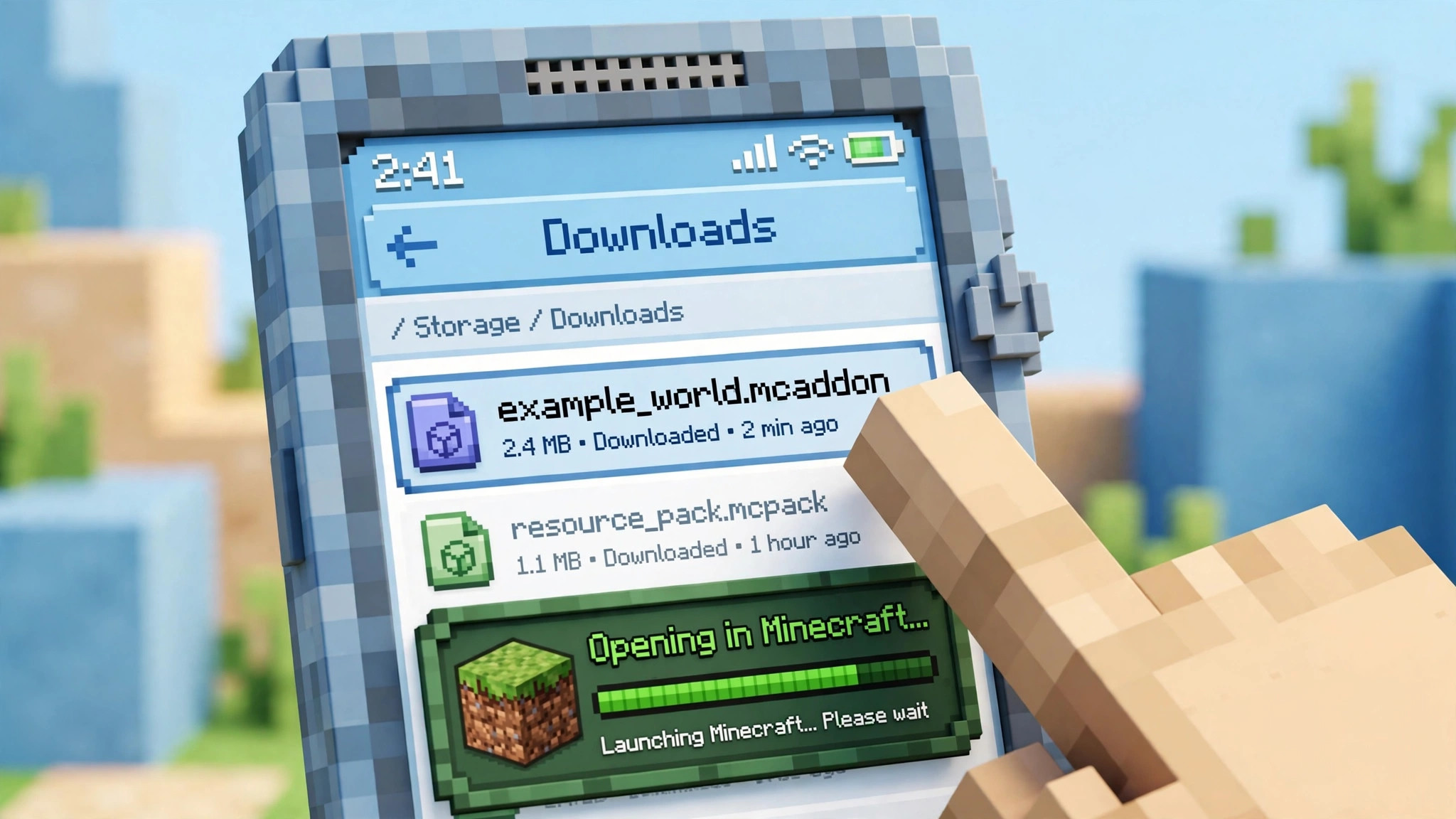
How to install Minecraft mods on iOS
- Download the add-on file in Safari. Third-party browsers sometimes fail to hand files to Minecraft, so Safari is the reliable choice.
- Open the Files app and go to Downloads, or wherever you saved the file. iCloud Drive, Google Drive, and files sent over AirDrop all work.
- Tap the file. If Minecraft does not open on its own, tap the Share button and choose Open in Minecraft (it may read “Copy to Minecraft” on older iOS versions).
- Wait for the import-success message.
iOS gives you no way to poke around in Minecraft’s internal folders, so the .mcpack route is not just easier on iPhone and iPad; it is the route. Do not waste time looking for a manual-install folder.
Turn the add-on on inside your world
Importing a pack and using it are two different things. Until you activate it, the pack sits in storage doing nothing.
For a new world:
- On the main menu, tap Play, then Create New, then Create New World.
- Scroll down to Behavior Packs and Resource Packs. Tap each pack you want, then tap Activate.
- If the add-on asks you to turn on experimental toggles, do it now, in the world settings, before you enter the world. Advanced add-ons fail silently without them.
- Tap Create and play.
For a world you already have:
- From the world list, tap the pencil icon next to the world, or open Settings from the pause menu while you are in it.
- Go to Behavior Packs and Resource Packs, and activate each half of the add-on.
- Reload the world.

Multiplayer works the same way: whoever hosts the world activates the packs, and players who join get the same content pushed to their game. Everyone still needs a compatible game version. Our multiplayer guide covers the PC side in detail; on mobile the rule is simpler because the host’s world carries the packs.
The Marketplace route: no files at all
If all of this sounds like more file management than you want, open the in-game Marketplace from the main menu and install the add-on from there. Marketplace packs are checked by Mojang, they install with one tap, and they skip the whole import step. Many are free; paid ones cost Minecoins. For kids’ devices or anyone who does not want to judge download sites, this is the route I recommend.
Where to get add-ons without getting burned
Safety rules that are not optional: get add-ons from the in-game Marketplace, the creator’s own site or GitHub, or a well-known community library like MCPEDL where packs have reviews and ratings. Never download a “modded Minecraft” APK, never install a “download manager” a site pushes on you, and never enter your Microsoft password, email code, or any personal info anywhere except the official Microsoft sign-in. A site promising free Minecoins is lying.
Why this matters: a .mcpack is a zip file, and zips can carry anything. Marketplace packs go through review; random files do not. Check the comments and ratings on a community download before you tap it, and match the add-on’s listed game version against yours before you import.
When it goes wrong
These are the failures I see most:
Tapping the file opens nothing
On Android, the file association is usually the problem: long-press the file, choose Open with, and pick Minecraft, then confirm the default in Settings > Apps > Minecraft > Open by default. On iOS, use the Share button and choose Open in Minecraft instead of tapping the file directly.
“Import failed”
Almost always a version mismatch or a corrupted download. Check that the add-on supports your game version (Settings, bottom-left of the main menu), delete the file, and download it again from the source.
The pack imported but does not show in world settings
Restart Minecraft first; the list refreshes on launch. Then check Settings > Storage > My Packs to confirm it is actually there. If it is not, the import failed silently and you need to import again.
The game crashes after you activate the add-on
Deactivate the pack and load the world again. If the world loads, the pack is the problem: either it needs experimental toggles you did not turn on, or it conflicts with another pack. On old phones, heavy packs can also overwhelm the device. Run one pack at a time until you find the bad one.
The add-on does nothing in-game
You imported it but never activated it, or you activated only one half. Go back to world settings and check both Behavior Packs and Resource Packs. Some add-ons also need experimental toggles on before they wake up.
Frequently asked questions
Can I use Forge or Fabric mods on my phone?
No. Forge, Fabric, and NeoForge are Java Edition mod loaders, and Java Edition does not run on phones. Mobile modding means Bedrock add-ons only. See our Java Edition install guide if you also play on a computer.
Are add-ons free?
Community add-ons are free. Marketplace packs are a mix: plenty are free, and paid ones use Minecoins.
Will add-ons get my account banned?
No. Add-ons are an official Mojang feature, so using them is not cheating. What can hurt your account is downloading a fake “modded Minecraft” from outside the app stores, so stick to the official game.
Why does an add-on say it needs experimental features?
Some add-ons use parts of the game Mojang still labels experimental. The add-on page tells you which toggles to flip; turn them on in world settings before you create or load the world, or the add-on will not work.
Can my friends join my modded world?
Yes. Activate the packs on the world you host, and Bedrock sends the packs to players who join. Everyone needs a compatible game version, and big add-ons can be rough on weak phones, so test with one friend first.
Do add-ons slow the game down?
Texture-heavy resource packs can, especially on older phones. Behavior packs barely touch performance. If your frame rate drops, remove the resource pack and keep the behavior pack.