Jade Mod Download for Minecraft 26.3 NeoForge
Jade Mod Download for Minecraft 26.3 NeoForge
Jade Mod Download for Minecraft 26.3 NeoForge gets you version 26.3.5 of the overlay mod that tells you what you are looking at. Point at a block and you see its name, the mod that added it, and the tool you need to break it. Point at a mob and you see its name, its health, and facts like a villager’s job or a horse that has been tamed. It runs on Minecraft 26.3 with NeoForge, and it needs no other mod to work. The file is Jade-mc26.3-NeoForge-26.3.5.jar. If you have ever broken the wrong block with the wrong tool, or opened a chest just to check what is inside, this is the mod that puts an end to that habit.
Minecraft 26.3 · NeoForge · v26.3.5 · Official download
What Jade changes
Jade puts a small box on your screen whenever you look at something. The box follows your crosshair, and it stays out of the way until you aim at a block or a mob. It adds no new blocks, no new items, and no new mobs. It shows you facts about the world that is already there.
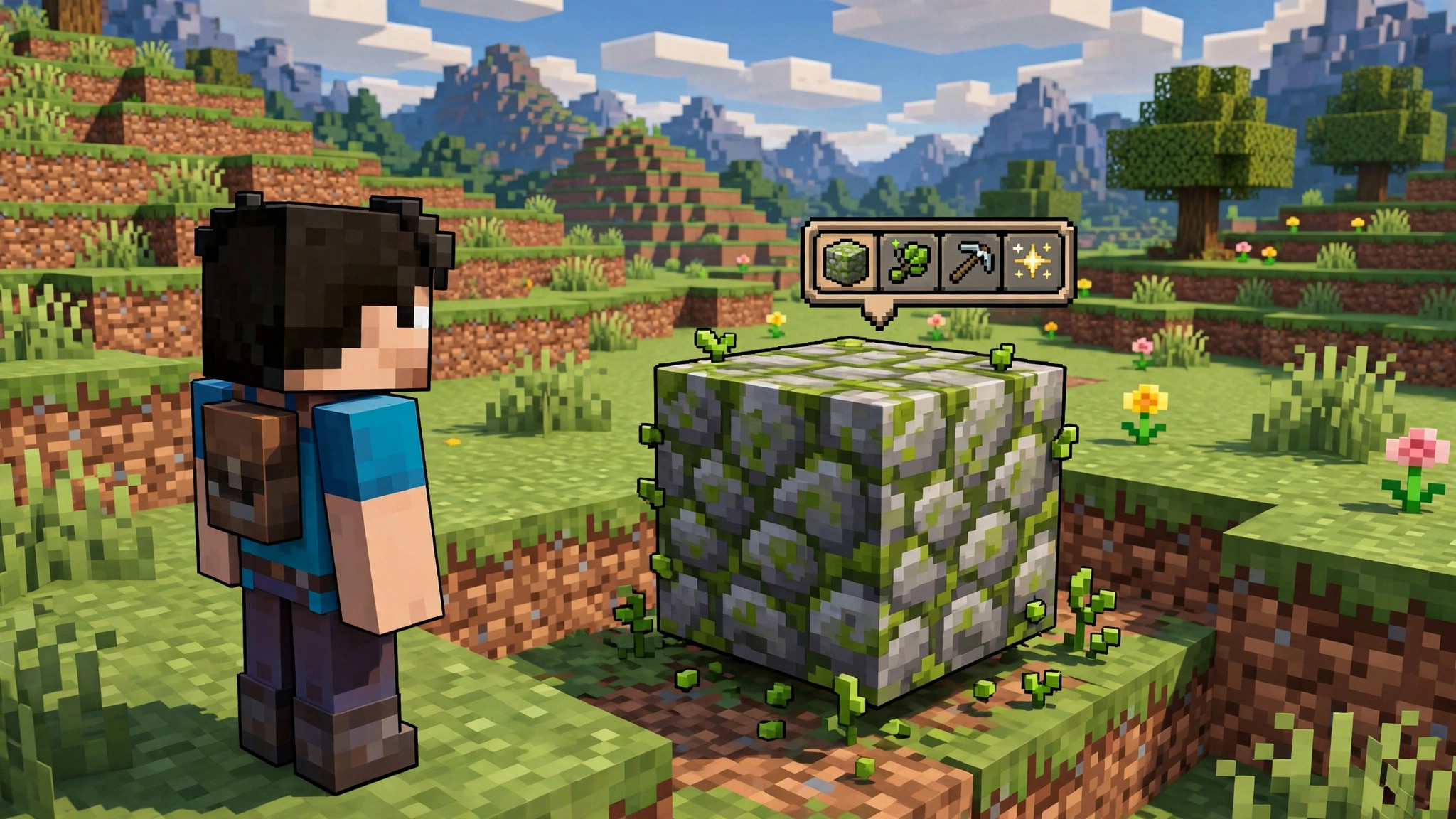
For blocks, the box shows the block name and the mod that added it. That second part matters more than it sounds. In a modpack with two hundred mods, a strange ore or a new machine means nothing on its own. Jade tells you which mod it came from, so you know where to look when you want more of it. The box also shows the harvest tool you need. If the tool in your hand will not work, the icon turns red. If it will work, the icon turns green.
Containers get the same treatment. Look at a chest and Jade shows the items inside as small icons, without you opening it. Look at a furnace and you see the item being cooked, the fuel left, and how far the cook has got.
Mobs get a name and a health bar. The box also shows status facts that change how you deal with the mob in front of you. A tamed horse reads as tamed, and a villager shows its profession and its trade level, so you can tell whether it is the librarian you have been levelling or a fresh one.
Jade covers a few more cases. It shows the growth stage of crops and the progress of beehives, so you know when wheat is ready and when honey is ready without breaking anything open. It shows stored energy in machines when the mod that owns the machine supports it. It shows brewing stand potions too, without you opening the stand.
The overlay can be moved, resized, and switched off in the config. If it sits over something you need to see, drag it somewhere else. If it feels too big, shrink it. If you want it gone for a screenshot, turn it off and turn it back on later.
Jade is the successor to WAILA and Hwyla, the two mods that did this job in older versions. The mod has passed 73 million downloads on Modrinth.
Who should install Jade, and who can skip it
Install Jade if you play modded Minecraft. Modpacks add hundreds of new blocks and machines, and no one remembers what all of them do. Jade fills that gap, and it does it without changing the game around it. Builders get the same benefit: when you are placing blocks from a dozen mods, knowing the name and source of each one keeps a build from turning into a guessing game.
Survival players get real use out of it too. Crop stages, beehive progress, furnace timers, and chest contents are all things you check all the time. Jade puts each answer on screen in under a second, and you never have to open a menu for it.
Skip Jade if you play pure vanilla and you like the game with nothing on screen but the hotbar. The mod adds nothing you need in a vanilla world, and the overlay can feel like clutter when there is nothing new to identify.
One more case: check your modpack before you install it. Most modpacks already include Jade. If yours does, installing a second copy gives you a duplicate-mod error on launch. Check the pack’s mod list first, and only add Jade if it is not there.
How to install Jade
Jade installs like any other NeoForge mod. You need NeoForge for Minecraft 26.3 already set up, and you need the right file.
1. Install NeoForge for Minecraft 26.3 if you have not done so yet. Open the NeoForge installer, point it at your Minecraft install, and run it. Launch the game once from the NeoForge profile so the mods folder is created.
2. Get the file Jade-mc26.3-NeoForge-26.3.5.jar. Check the file name before you move it.
3. Open your Minecraft folder and find the mods folder inside it. On Windows, press Win+R, type %appdata%\.minecraft, and press Enter.
4. Drop Jade-mc26.3-NeoForge-26.3.5.jar into the mods folder. Do not unzip it. The jar goes in as it is.
5. Launch Minecraft from the NeoForge profile. The game loads the mod with everything else in the folder.
6. Load a world and point your crosshair at a block. The overlay box should appear near the top of the screen.
That is the full install. There is no config file to edit and no extra mod to add. JEI is listed as optional on Modrinth, and the two pair well together, but Jade runs fine without it.
Compatibility
Jade is client-side only. You install it on your own game, and you do not need the server to have it. It works on any server, and it works in singleplayer too.
On a server, Jade shows less detail for some blocks. The server only shares certain facts about the world, and the mod cannot show what the server keeps to itself. The name, the mod that added the block, and the harvest tool still work. Container contents and machine energy may not show, because that data stays on the server side.
Fabric and Quilt builds of version 26.3.5 also exist on Modrinth. The file in this guide is the NeoForge build. Do not use a Fabric build on a NeoForge install. The loaders are not interchangeable, and the game will fail to start if you mix them up. If you play on Fabric, get the Fabric file instead.
Most modpacks already include Jade, so check the pack’s mod list before you add it by hand. A second copy causes a duplicate-mod error on launch. If you see that error, remove the jar you just added and keep the copy that came with the pack.
JEI is the natural partner here. Jade tells you what a block is, and JEI tells you how to make it or what it is used in. Neither one needs the other, so install JEI only if you want its recipe lookup.
Performance
Jade is a HUD overlay, and that is all it is. It draws one small box on your screen when you look at something, and it draws nothing when you are not looking at anything. It adds no blocks, no entities, and no world generation.
Modrinth lists no performance impact for the mod. In practice, a small overlay that updates when your crosshair moves is about as light as a mod can get. If your game runs slowly with Jade installed, the cause is almost certainly another mod in the pack, not this one. You can test that by removing Jade from the mods folder and loading the same world. If the frame rate does not change, Jade was never the problem.
Troubleshooting
Most Jade problems come from the wrong file, a duplicate copy, or a setting that got turned off.
The overlay does not appear at all. Check that the jar is in the mods folder and that you launched from the NeoForge profile, not the plain Minecraft profile. Also check the config. The overlay can be switched off, and it is easy to turn it off by accident.
The game crashes on launch with a duplicate-mod error. You have two copies of Jade. This happens when your modpack already includes it and you added the jar by hand. Open the mods folder and look for two Jade files. Remove the one you added and keep the copy that came with the pack.
The game crashes on launch and the error mentions the loader. You have the wrong build. A Fabric or Quilt file will not load on NeoForge, and the game will stop during startup. Check the file name. It should read Jade-mc26.3-NeoForge-26.3.5.jar.
Container contents show on singleplayer but not on a server. This is expected. A server does not share container data with the client, so Jade cannot show it. The block name, the mod, and the harvest tool still work, because the client knows those facts on its own. There is no setting that fixes this.
The overlay is in the way or too big. Open the config and move it. You can drag it to a corner that suits you, and you can resize it until it fits your screen. If it still bothers you, switch it off in the config and switch it back on when you need it.
FAQ
Is Jade client-side only?
Yes. You install it on your own game, and the server does not need it. It works on any server and in singleplayer. On servers it shows less detail for some blocks, but the name, the mod, and the harvest tool still work.
Do I need JEI to use Jade?
No. JEI is listed as optional on Modrinth. Jade works on its own. JEI pairs well with it, since Jade tells you what a block is and JEI tells you how to craft it, but neither one needs the other.
Is Jade the same as WAILA?
Jade is the successor to WAILA and Hwyla. It does the same job, and it is the mod that most players and modpacks use now. If you played with WAILA in older versions, Jade will feel familiar from the first minute.
Does Jade work with modpacks?
Yes, and most modpacks already include it. Check the pack’s mod list before you install it by hand. If it is already there, adding a second copy gives you a duplicate-mod error on launch.
Can I turn the overlay off?
Yes. The overlay can be moved, resized, and switched off in the config. Turn it off when you want a clean screen, and turn it back on when you need it.
Does Jade work on Minecraft 26.3 with NeoForge?
Yes. Version 26.3.5 is built for Minecraft 26.3 on NeoForge, and the file is Jade-mc26.3-NeoForge-26.3.5.jar. Fabric and Quilt builds of the same version also exist, so download the build that matches your loader.
Verdict: Jade Mod Download for Minecraft 26.3 NeoForge
Jade Mod Download for Minecraft 26.3 NeoForge is an easy yes for anyone who plays modded Minecraft. It answers one question, what am I looking at, and it answers it in under a second. The block name, the mod it came from, the harvest tool, the chest contents, and the mob health bar are all facts you check all the time, and Jade puts them on screen without a menu or a wiki tab.
It costs nothing in performance and nothing in setup. Drop one jar in the mods folder and it works. The only real gotcha is the duplicate copy. Check your modpack first, and you will never see that error.
If you play vanilla and you like a bare screen, you can skip it. Everyone else should install it. It is one of those mods that feels like it should have been in the game from the start, and after a week with it, playing without it feels like playing blind.